
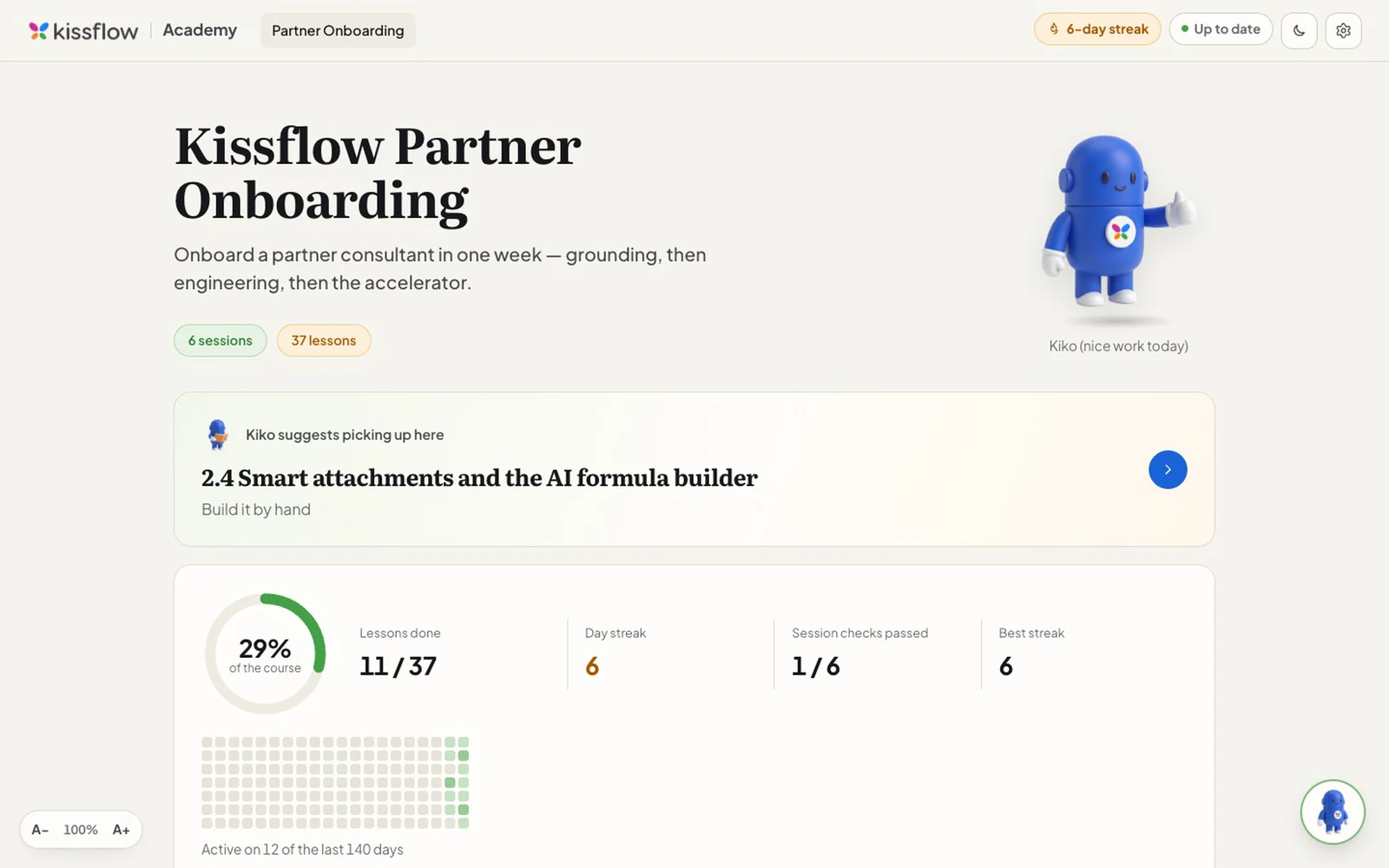
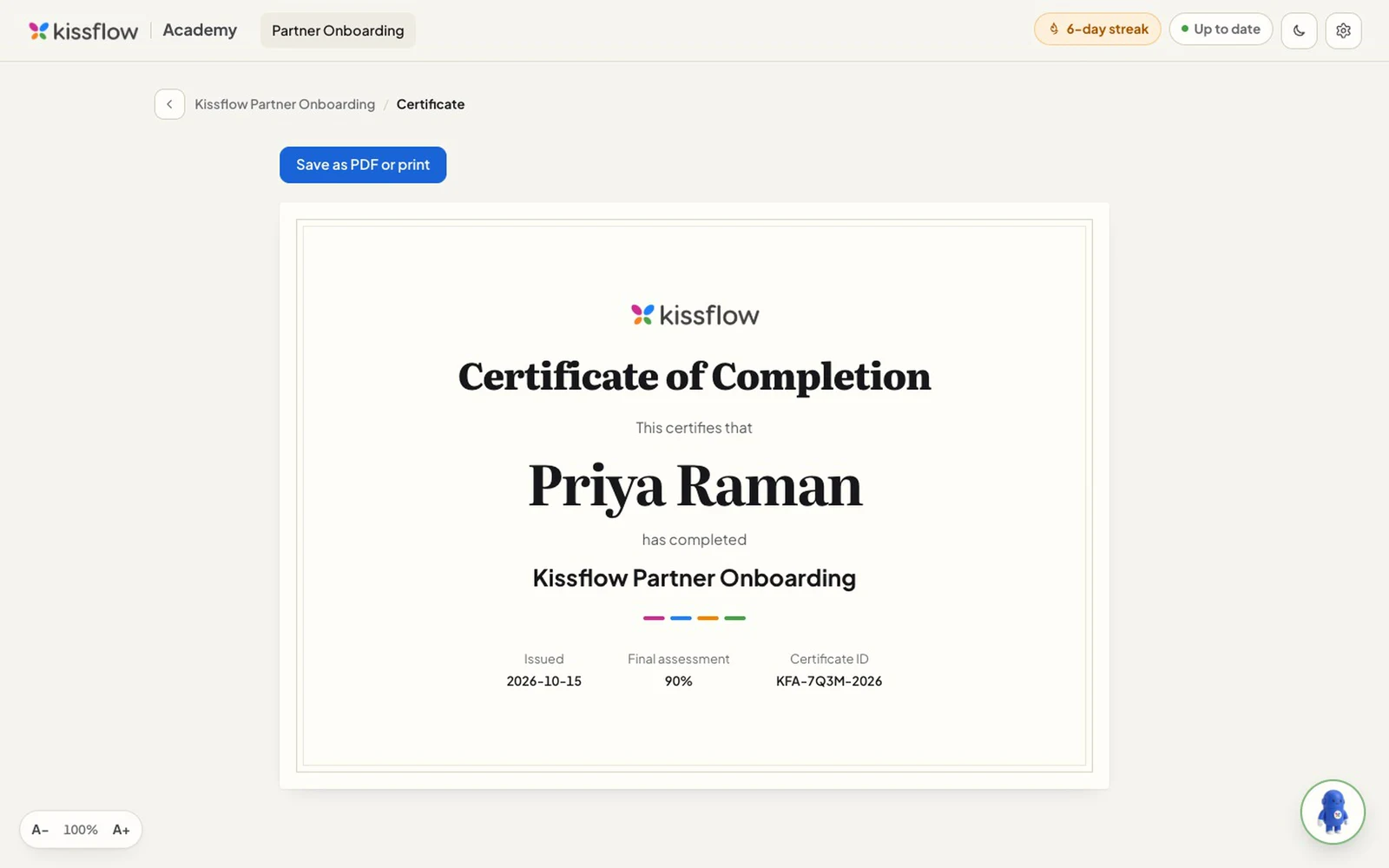
Kissflow Academy is a free desktop app that teaches partner consultants to build on Kissflow. Lessons show the real Kissflow screens they describe, quick checks grade instantly, hands-on exercises happen in your own Kissflow training account, and an AI coach called Kiko sits beside you while you work. At the end there’s a final assessment and a certificate. It runs on Mac, Windows, Linux and Android.
I’m the documentation manager at Kissflow, and I built it end to end with Claude Code. This is what it does, and what building it taught me.
Why build an app
The course material already existed: a partner onboarding curriculum for consultants who build on Kissflow. What it didn’t have was a way to deliver it that wasn’t a slide deck, a shared drive, and someone answering the same questions over and over.
So I asked Claude Code for a real desktop app, the kind you download and double-click. It’s Rust almost top to bottom: Tauri for the desktop shell and Leptos for the interface, compiled to WebAssembly so it runs inside the app’s web view at near-native speed. The Mac download is 35 MB, including every screenshot and clip in the lessons. The reference app I’d been looking at, built with Electron (the usual way to make desktop apps from web code), weighs about 500 MB.
The code came quickly. The work moved to the seams, the places where two parts that are each correct meet and disagree. The hardest one was thirty-two pixels wide.
Kissflow said no
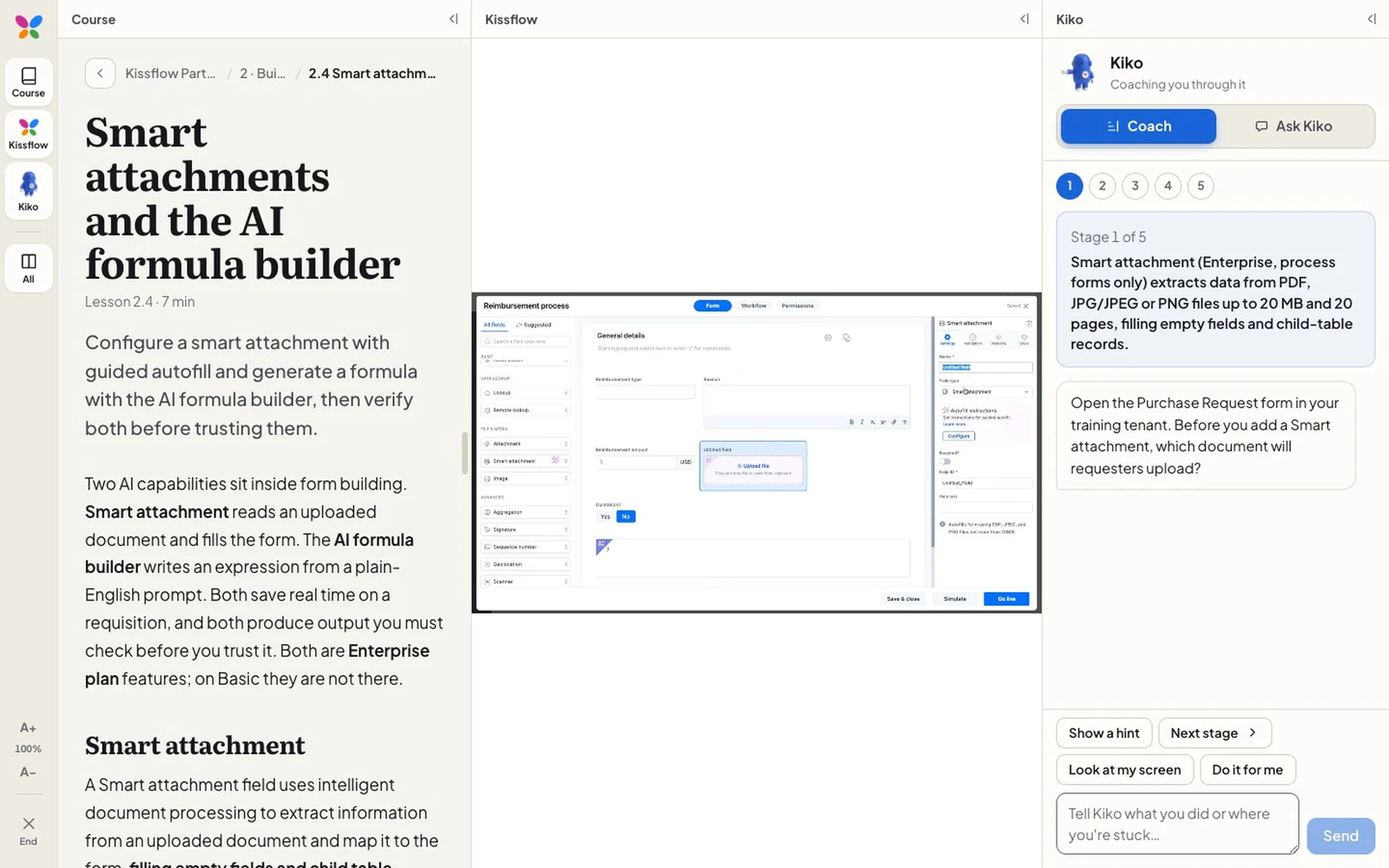
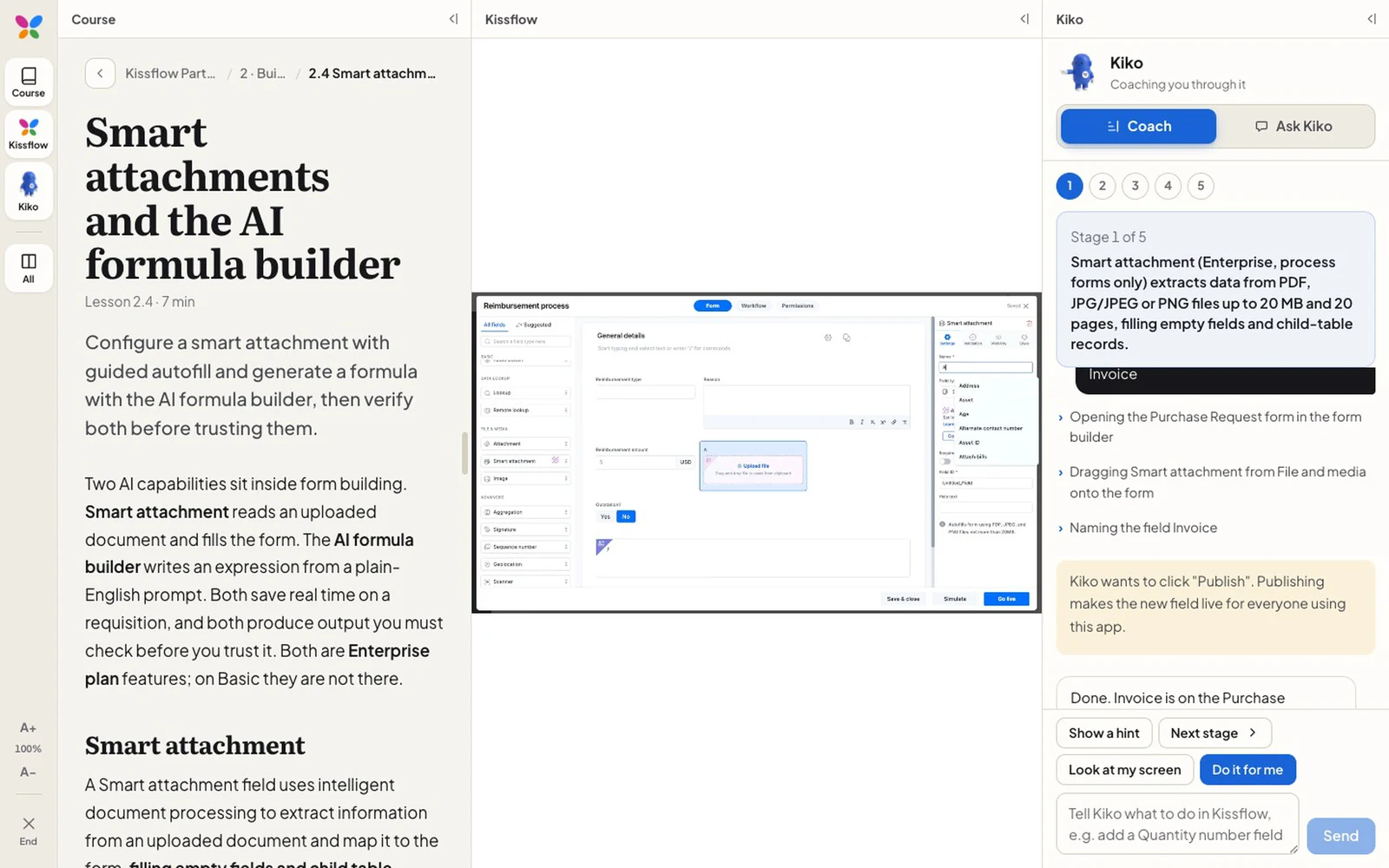
The core idea was simple. On the left, the lesson. In the middle, the learner’s actual Kissflow training account, live, so they build the thing while they read about it. On the right, Kiko, coaching them through it.
The first version put Kissflow in an iframe, which is how you put one website inside another. It loaded a blank rectangle.
Kissflow, sensibly, refuses to be framed. Its servers send a header called X-Frame-Options: SAMEORIGIN, which tells the browser “only my own pages may embed me.” It’s a standard defence against clickjacking, where a malicious page hides a real login under a fake button. Good for Kissflow. Bad for my middle column.
The way around it was to stop pretending. Instead of a frame inside the app’s page, the middle column became a second, native browser window, placed inside the main one at exactly the right position. Tauri can do this. It’s marked unstable, which in hindsight was a hint.
The thirty-two pixels
The native window went in, and sat slightly too low. Not wildly. Just enough that the bottom of Kissflow disappeared under the edge of the app, and the top of it overlapped the column headers.
Claude tried the obvious fixes. Measure the placeholder element in the page, send its position to Rust, place the window there. Still low. Re-measure after the layout settles. Still low.
So we stopped guessing and logged it. Every time the window moved, the app wrote down where the interface thought the pane should go and where macOS actually put it. The log said: native content height 777, interface height 745.
Thirty-two pixels. The height of the macOS title bar.
The page measures from just below the title bar. The native window measures from the top of the whole window, title bar included. Neither is wrong; they disagree about where zero is. The fix was one subtraction. Finding it took a log line comparing two numbers that each, on their own, looked perfectly fine.
Then the window started eating clicks. A hidden native window on macOS can still sit invisibly on top of the page and swallow every click aimed at the lesson underneath. The fix there was even dumber: don’t hide it. Move it twenty thousand pixels off-screen. It’s still the most effective line in the codebase.
The coach that couldn’t peek
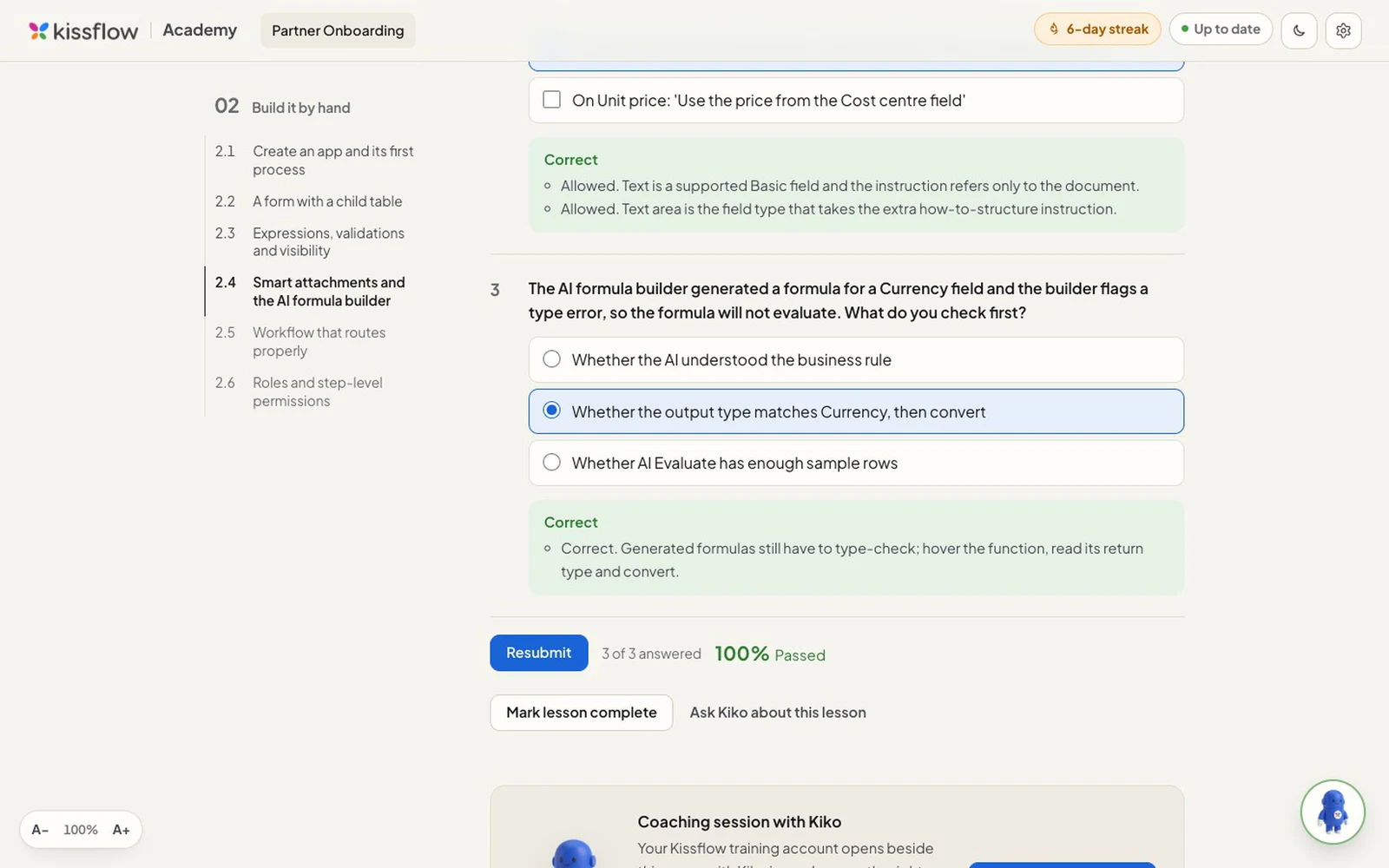
One rule I set early and never relaxed: the AI never decides a score.
Every quiz answer, every session check and the sixty-minute final are marked by plain Rust code against answer keys bundled inside the app. Kiko runs on whichever AI the learner picks (OpenAI, Anthropic, a local model through Ollama, any OpenAI-compatible address, or their own ChatGPT plan), and Kiko never sees an answer key. The interface never sees them either. It gets the question and the options; the keys stay in Rust.
It sounds paranoid. It’s how you’d want an exam to work. A language model that grades is a language model that can be talked into a pass. A model that only coaches can be as chatty as it likes. Exercise write-ups do get an AI review, but it’s advice, and it never gates progress.
API keys get the same treatment. They live in the operating system’s keychain and are attached to requests in one Rust file. The Kissflow window, which runs someone else’s website, can’t call the app at all.
The ChatGPT option needed the same care. Many consultants already pay for ChatGPT Plus or Pro, and it made sense to let Kiko use that. OpenAI’s “Sign in with ChatGPT” for other apps is open only to approved partners, so the app doesn’t borrow a login. It hands each conversation to OpenAI’s own Codex command-line tool, which the learner signs in to once with their ChatGPT account. The app never holds a ChatGPT token, and replies count against the learner’s plan. The screen helper still needs an OpenAI key: Codex runs its own agent and can’t use Kiko’s tools.
Kiko’s hands
Kiko lives in its own column. It can’t see into the Kissflow window beside it, so I wanted a way for it to look. The first version borrowed page-agent, an open-source library that reads a web page and explains it. Three things went wrong, and each one changed the design.
The convenient build phoned home. page-agent ships a ready-made bundle on a CDN. Claude read it before we used it: when injected into a page, that build starts itself and connects to the project’s public test model. Inside a learner’s Kissflow account it would have sent their screen to a server neither of us controlled. We built a clean copy from source instead.
It said it was open when it wasn’t. The library loaded before the page had a head, so its stylesheet failed without a word and its panel landed just below the visible edge. Everything reported success; the learner saw nothing.
It broke on a newer model. The library chose its request settings from a fixed list of model names. Switch to a model that wasn’t on the list and every request failed.
That was the moment to stop patching. Kiko’s brain moved into the app. The agent loop now runs in Rust, on OpenAI’s Responses API, its interface for tool-using agents, so this part needs an OpenAI key. Coaching chat still works with any provider. The Kissflow page gets one small script I can read in full: it describes the screen and performs one action at a time. The API key never goes near it.
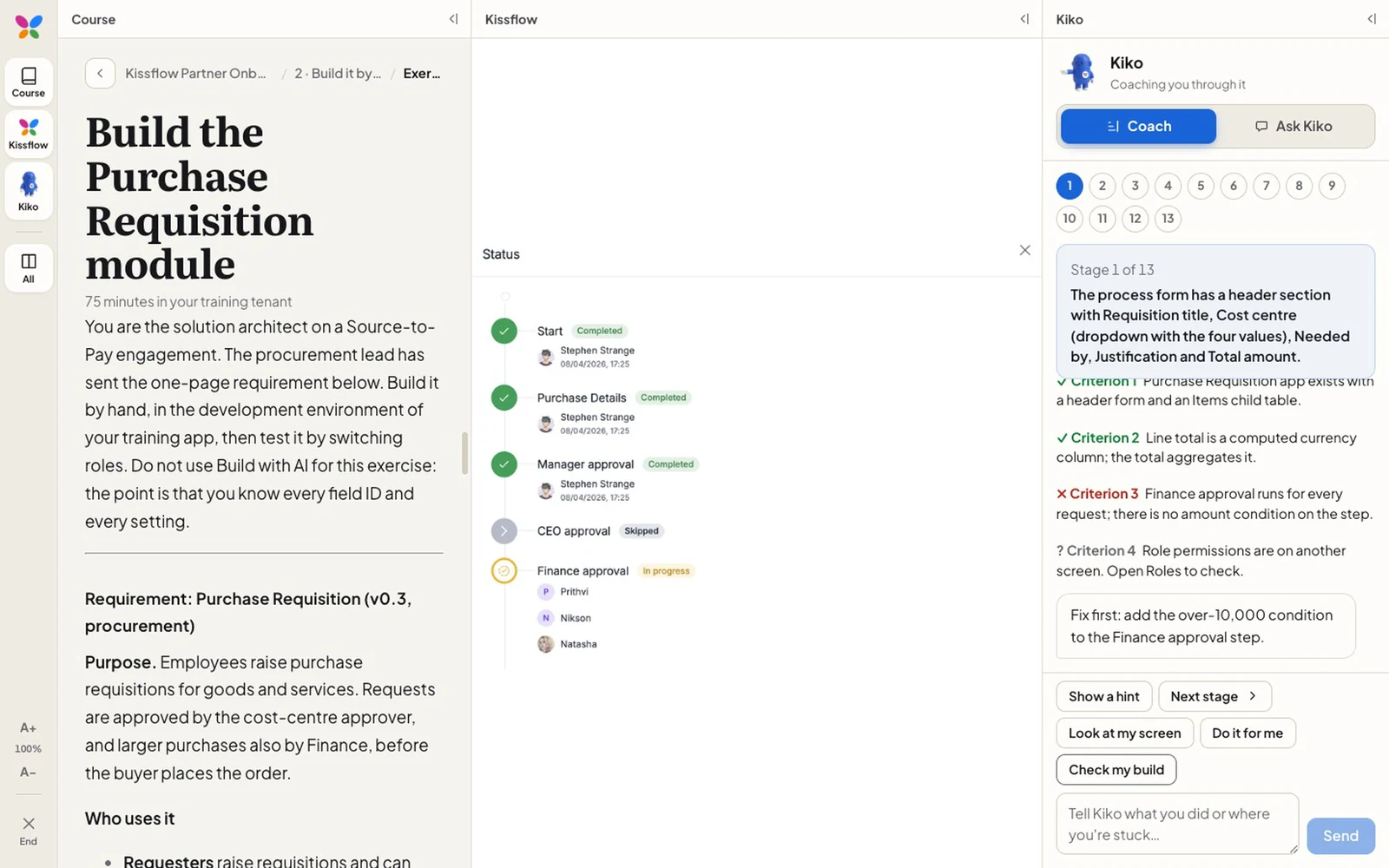
It now has three buttons. Look at my screen answers questions about what you’re seeing. Do it for me carries out a task while you watch, with a one-line reason for every step, and anything that reads like deleting, publishing or deploying waits for your Allow. That check is in code, not in the prompt. Check my build marks each of the exercise’s acceptance criteria as met, not met or can’t tell, with what it saw.
The research said the future is WebMCP, where a site publishes typed tools for agents instead of making them guess at buttons. It’s right, but it’s something a site’s owner does, and Kissflow hasn’t yet. That one’s a note for my day job.
Real Kissflow screens in the lessons
For most of the build the course was all words: thirty-seven lessons telling consultants where to click, and almost no pictures of where that was.
Kissflow’s community documentation has hundreds of screenshots and short screen recordings. Claude pulled them with Firecrawl and an export of the documentation, 559 articles in all, then agents went through the course a session at a time. Each one looked at every image before placing it next to the paragraph it illustrates, and captioned only what’s on screen. It skipped anything showing real-looking email addresses or contradicting the lesson. Thirty-six of the thirty-seven lessons now have pictures; the one about writing SDK code doesn’t, because there’s nothing on screen to show.
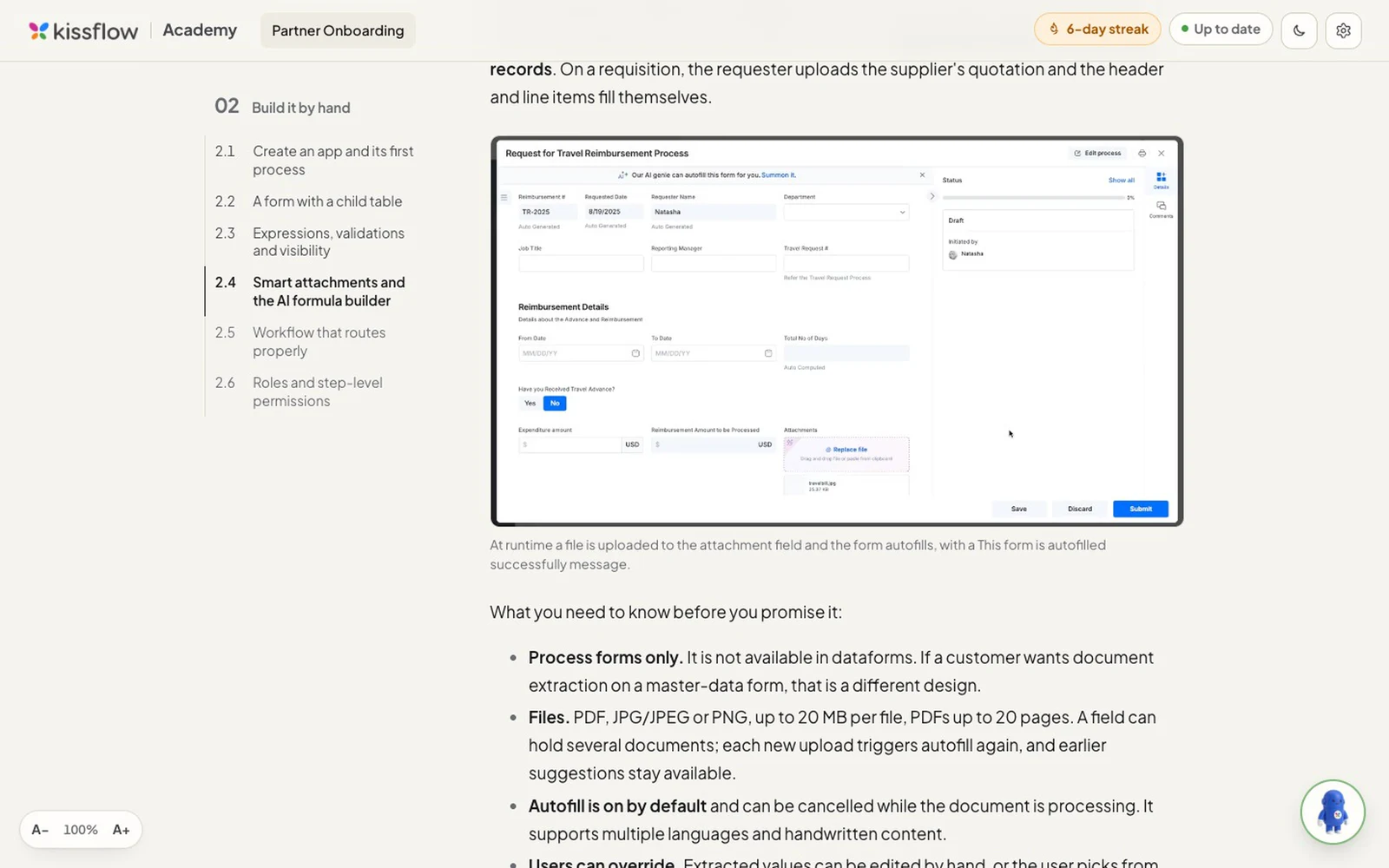
Then the images didn’t load. The storage behind the community site refuses requests from other sites, a reasonable rule that turned every picture into a blank box. So the app carries them itself. Animated GIFs became short looping videos and screenshots became WebP: 129 MB of media came down to 8.6 MB, and lessons now load instantly and work offline.
Two fact-checks
The README was the most familiar task: the document a future maintainer opens first. Claude drafted it from the code, and a second agent checked every concrete claim against the source. It came back with a short, slightly embarrassing list. The README said Settings offered four AI providers; the code had three, and the fourth was one of them with a different address. It said adding a course meant updating the validator; it also meant updating a test that hard-codes the number of lessons.
Then I pointed the same habit at the course. One agent per session went through every factual claim in the lessons, 465 of them, and looked for a community article that said otherwise. A second agent tried to prove each finding wrong. Forty-six were raised and thirty-seven findings survived. Twenty-one were serious enough to fix now; the other sixteen were minor.
Some were stale, not wrong: the training material predates features like automatic retries for integrations. Some were wrong. One lesson said that when someone leaves, only a flow admin can hand their pending tasks to someone else. The documentation says an account admin can too. Another said a visibility rule on a table column hides it row by row, and built a quiz answer on that; a rule based on a header field actually hides the whole column. Those twenty-one are fixed, each citing the article it came from.
Four doors
A desktop app nobody can install is an elaborate hobby. The Mac build was straightforward: one universal disk image for Apple silicon and Intel.
Windows I built from the Mac, which Tauri calls experimental. It failed three ways in a row: a half-installed compiler target, a missing toolchain, and a timeout downloading one small helper file on a slow connection. Each fix was small, and each needed someone to read the error rather than retry. Linux can’t be built from a Mac at all, so a GitHub Actions runner builds it, and the release script signs the result locally so the signing key never leaves my machine.
The fourth door is Android, from the same Rust code. A phone allows one web view per app, so the Kissflow account opens in the browser instead of beside the course, and the certificate becomes a PDF that Rust writes by hand. One APK for every kind of phone chip is 87 MB; split per chip, the one most phones need is 32 MB.
All four are on the releases page, and the Mac, Windows and Linux AppImage versions update themselves.
What a docs person takes from this
AI made the code cheap. A desktop app with a coaching mode, an offline grading engine, a screen helper and four platforms is not a weekend project, and it didn’t feel like a heroic one either.
But the work didn’t disappear. It moved to the seams. The page and the native window. A helpful library and a learner’s private screen. A README and the code it describes. A course and the documentation it was supposed to agree with. Every hard problem in this build was two correct things disagreeing, and every fix started with someone refusing to accept “it should work” as an answer.
That’s not a new skill. It’s what good technical writers have always done: read the thing, check the claim, find the place where the story and the system stop matching. Building software with AI is mostly that, too.